Want apps available only at chosen times? In Do Instead Pro, add allowed windows to Social or Work and turn the shield on. The selected apps stay blocked outside those windows. If you want a built-in option, start with Screen Time’s scheduled controls.
Choose the boundary you mean
“Block apps at certain times” can mean different things. A schedule decides when you can use an app. A daily allowance decides how long you can use it. Silencing notifications changes interruptions, but still lets you open the app.
| You want to… | Start with… |
|---|---|
| Keep apps unavailable during a part of the day | Screen Time scheduling or Do Instead’s allowed windows |
| Stop after a daily amount of use | Screen Time App Limits |
| Quiet notifications | An iPhone Focus |
| Pause before an automatic app open | Do Instead’s free Shortcuts route |
Start with Apple Screen Time
On iOS 26, open Settings → Screen Time → Downtime, enable a schedule, and choose its days and hours. Review Always Allowed for apps you still need. App Limits is the separate control for a daily allowance.
Labels and options can differ on newer iOS versions. Use the version selector in Apple’s scheduling instructions for your phone. Check the result yourself before relying on a boundary.
Set separate allowed times in Do Instead
This route needs Do Instead Pro and permission to use Screen Time. Your task list stays in Apple Reminders or Todoist; Do Instead brings a next step into view when you reach for a blocked app.
- Open the Block tab. If you are on Free, review the Pro plans. Allow Screen Time access when prompted.
- Choose a group. Under Social, tap Choose social apps & sites. Select your distractions in Apple’s picker. Work has its own selection.
- Add an allowed window. Under Social · allowed times, tap Add a window. Choose days, a From time, an Until time, and a name you recognize. Save it.
- Set Work separately. Repeat for work apps if you want to keep them within working hours.
- Turn Shield on. Confirm you have selected the apps and websites you intend to protect, then test outside an allowed window.
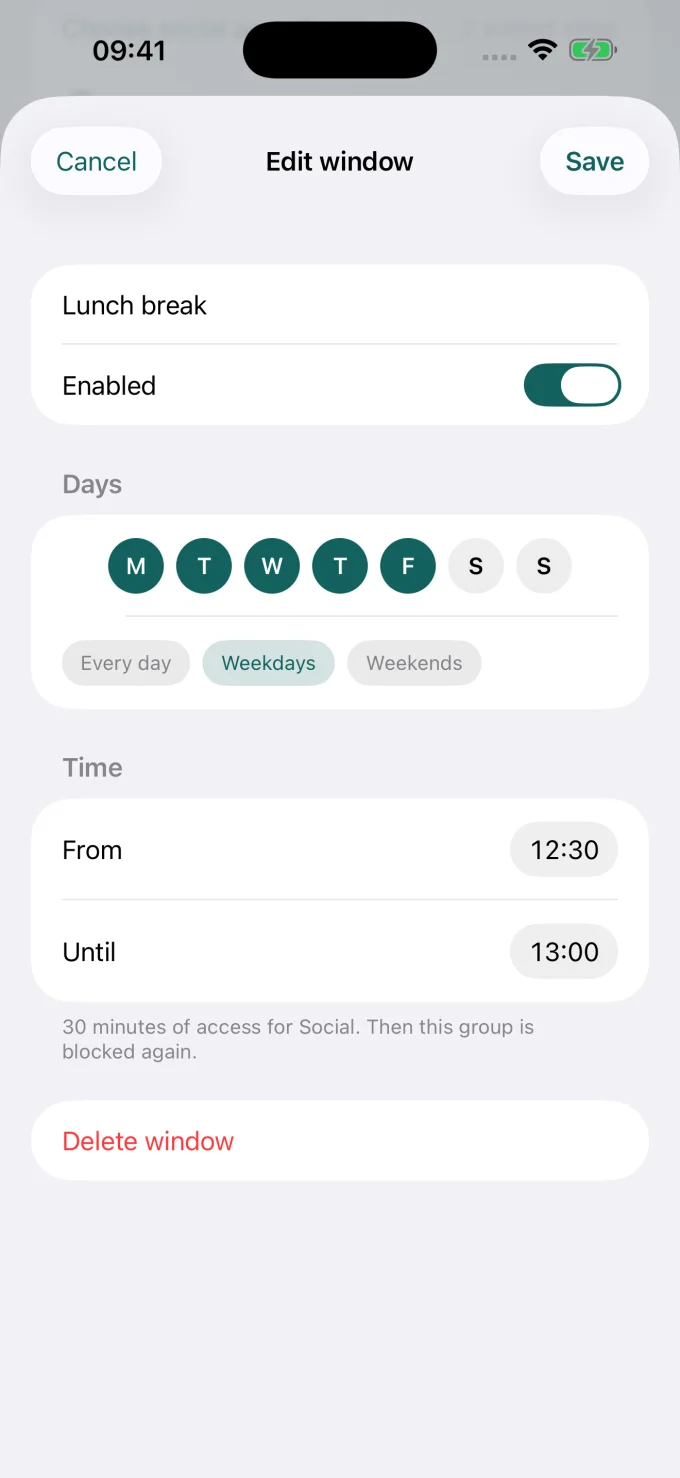
A group with no allowed windows is blocked all day while protection is on. There are up to eight windows across both groups, each at least fifteen minutes long. You can add more than one daily window.
Try a simple weekday rhythm
| Group | Allowed on weekdays | Outside that time |
|---|---|---|
| Social | 12:30–13:00 | Selected social apps blocked |
| Work | 09:00–17:30 | Selected work apps blocked |
With no weekend windows, these groups stay blocked on weekends while protection is on. Add weekend access if you want it. If an app is selected in both groups, it stays blocked whenever either group blocks it.
While the shield is on, widening access or switching protection off takes ten minutes. Tightening a window applies immediately. A task’s completion does not change the schedule.
Check the boundary you chose
- Outside an allowed window, open one selected app and confirm that it is blocked.
- During an allowed window, check that access opens for the right group.
- Open Reminders or Todoist to make sure you can still reach your tasks. Keep your task manager out of the protected selection.
- Test selected websites in your usual browser too. Website coverage depends on the browser and iOS version.
The schedule is registered with iOS so it can operate while Do Instead is closed. If the Block tab reports a scheduling or permission error, resolve it before relying on the schedule. Contact support if the result differs from your settings.
Do Instead instructions refer to version 1.1.3. Screens show example data from the app’s September interface.
Keep going
- Use Apple Reminders
Bring the tasks you already keep into view.
- Connect Todoist
Give your next Todoist task a place in the pause.
- Block Instagram on iPhone
Choose when to use the app, without deleting it.