For a daily allowance, use Screen Time App Limits. For Instagram available only during chosen windows, use scheduled controls or Do Instead Pro. If you want a gentler interruption, Do Instead’s free Shortcuts route opens your tasks when Instagram opens.
Choose what you want to change
Keeping an app installed and keeping it available all day are different choices. Decide whether your problem is a long session, repeated automatic opens, or checking at the wrong times.
- “I want a daily allowance.” Start with Apple’s App Limits.
- “I want Instagram only at lunch or in the evening.” Set allowed windows.
- “I open it before I have decided why.” Try a Shortcuts pause.
- “I switch to instagram.com.” Check the website separately as well as the native app.
Use Apple’s built-in daily limit
On iOS 26, open Settings → Screen Time → App Limits → Add Limit, select Instagram, and choose a daily allowance. Review the available blocking and passcode options. Use Apple’s guide for your iOS version if the labels differ.
A daily allowance and a fixed access window serve different purposes. If you keep spending the allowance at a time you meant to protect, a schedule may fit better.
Schedule Instagram access with Do Instead
Scheduled blocking requires Do Instead Pro and Screen Time permission.
- Open the Block tab and enable Screen Time access if requested.
- Under Social, choose Choose social apps & sites and select Instagram in Apple’s picker.
- Under Social · allowed times, tap Add a window. Choose the days and times when you want Instagram available.
- Save the window and turn Shield on. Outside your allowed times, check that Instagram is blocked.
- Connect Apple Reminders or Todoist so a next task can be shown when you reach for a distraction.
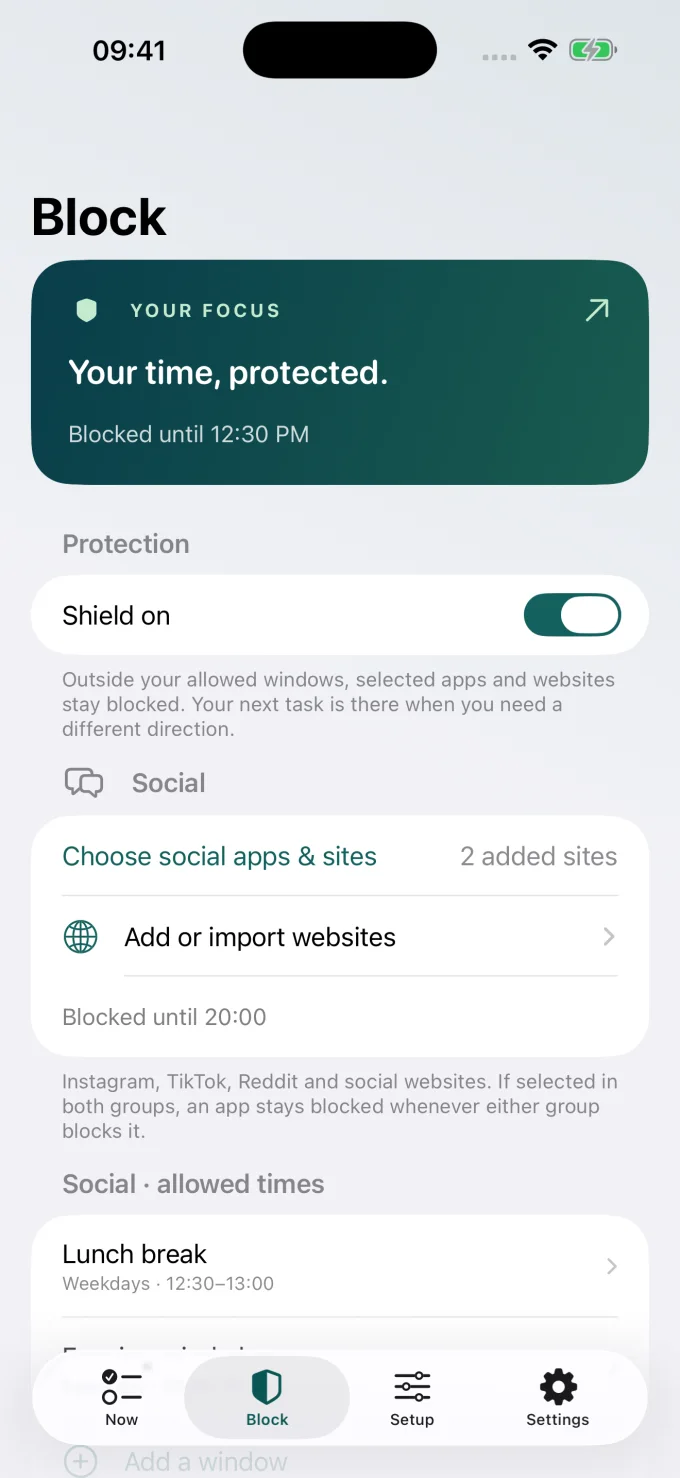
For example, allow Social from 12:30 to 13:00 on weekdays. That gives the group a lunch window; it stays blocked outside that window while protection is on. Add evening or weekend windows if you want them. The scheduling guide explains overlapping Social/Work selections and minimum window lengths.
Widening access or switching the shield off takes ten minutes while protection is active. Tightening protection applies immediately. Completing the suggested task does not unlock Instagram.
Try a free pause before opening Instagram
If you prefer a gentle prompt, the Setup tab in Do Instead explains this route:
- Open Shortcuts → Automation and create an automation.
- Choose App, select Instagram, and choose Is Opened and Run Immediately.
- Add the Open App action and choose Do Instead.
- Save it, then open Instagram to check the result.
This opens Do Instead with your next steps. It is not the same as a scheduled block. You choose whether to use a task, a breath, or movement as the next thing you do.
Check instagram.com separately
Blocking the Instagram app does not mean every way to reach Instagram has been checked. In Do Instead’s Social group, review website selections and use Add or import websites if you want to add the domain explicitly.
Test the site in the browser you actually use, outside your allowed window. Website coverage depends on iOS and the browser. Explicit domain restrictions can show Apple’s restriction page rather than Do Instead’s task screen.
Common questions
Can I block only Reels and keep DMs?
Do Instead does not selectively remove Reels from the Instagram app. Blocking the whole app also makes its DMs unavailable during that period. If messages matter, choose an access window that lets you check them or use another agreed contact channel.
Do I have to delete Instagram?
No. You can keep it installed and decide when it fits your day. A schedule is a boundary you choose; it is not a guarantee against every way of changing your phone settings.
What should I check if Instagram still opens?
Check whether you are currently inside an allowed window, whether Instagram was selected, whether Shield is on, and whether Screen Time access remains granted. Check whether you opened the native app or the website. If the settings and behavior still disagree, contact support.
Do Instead steps refer to version 1.1.3. Instagram is a separate service; Do Instead is not affiliated with Instagram or Meta.
Keep going
- Block apps at certain times
Set a schedule for social breaks and work hours.
- Use Apple Reminders
Bring the tasks you already keep into view.
- Connect Todoist
Give your next Todoist task a place in the pause.