App blocker for iPhone
Less scrolling.
Your next task,
back in view.
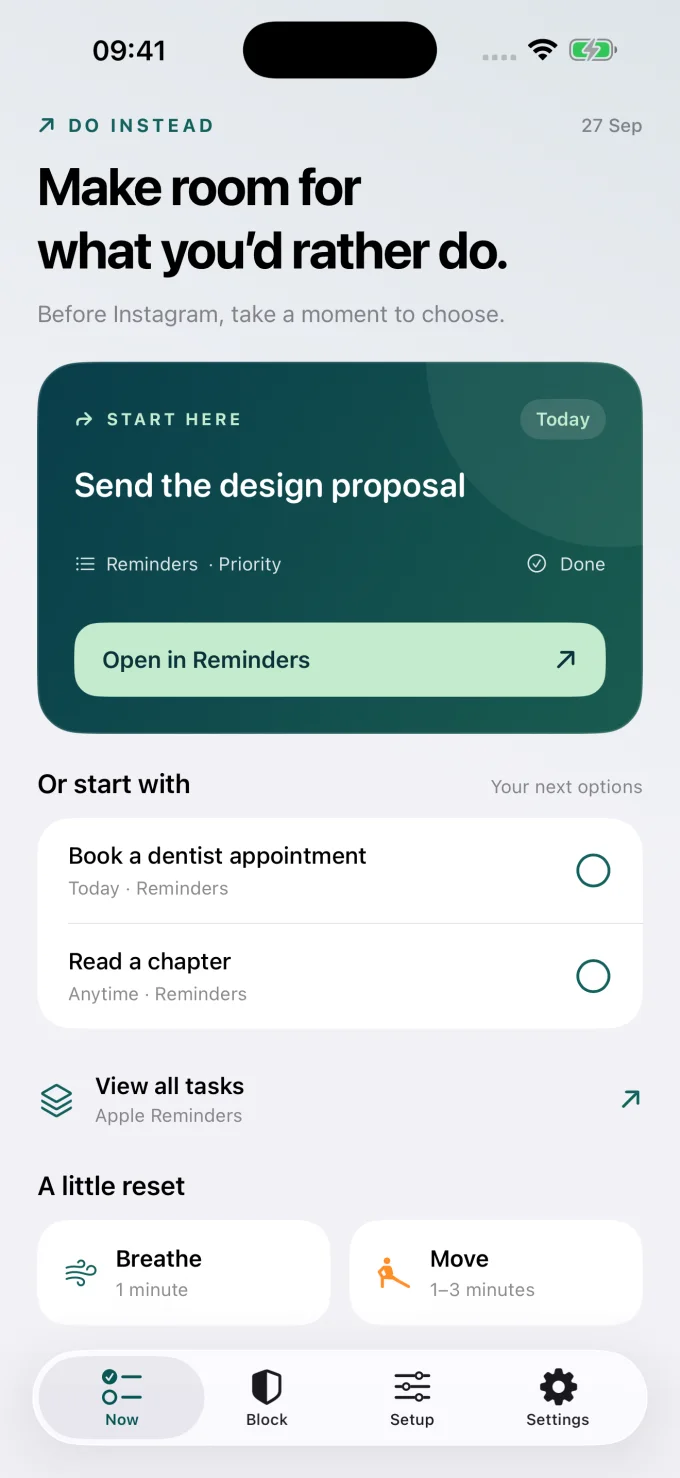
Do Instead blocks distracting apps on a schedule and shows a task from Apple Reminders or Todoist when you reach for one. Make room for what you’d rather do.
iOS 17 or later · Free features + optional Pro
No Do Instead account. No ads or tracking.
A pause with somewhere to go
Your plans deserve a place in the moment.
Choose your distractions
Select the apps and websites you want to put boundaries around. Keep Social and Work in separate groups.
Decide when they fit
With Pro, set allowed windows for each group. Selected apps stay blocked outside those times while protection is on.
Find a next step
When you open a blocked app, a task on the blocking screen gives you another direction. You can also step away, breathe, or move in Do Instead.
Finishing a task does not unlock a blocked app. Your allowed times decide when access opens.
Use the lists you already have
No new task system to maintain.
Today’s tasks come first, followed by overdue work. Keep your next step nearby with Home and Lock Screen widgets.
Apple Reminders
Your existing reminders become a shortlist of things you could do next. Connect Reminders for free; scheduled blocking requires Pro.
Set up Apple Reminders →Todoist
Bring your Todoist tasks into the same pause. Connect your account with an API token in Settings. Todoist integration requires Do Instead Pro.
Connect Todoist →Boundaries that fit your day
A social break. An end to the workday.
Give Social and Work their own allowed times. An app in both groups stays blocked whenever either group blocks it.
Learn how scheduled blocking works →- SocialWeekdays · 12:30–13:00
- WorkWeekdays · 09:00–17:30
One possible rhythm: a social break at lunch, work apps during work hours. Choose the times that suit you.
While the shield is on, turning it off or widening allowed times takes ten minutes. Changes that tighten protection apply immediately.
Free & Pro
Start with a better next step.
The free Shortcuts route opens Do Instead when you open a chosen app. Pro adds scheduled Screen Time blocking.
| Feature | Free | Pro |
|---|---|---|
| Apple Reminders and widgets | Included | Included |
| Breathing and desk movement | Included | Included |
| Pause using a Shortcuts automation | Included | Included |
| Scheduled app and website blocking | — | Included |
| Social and Work allowed windows | — | Included |
| Ten-minute cooldown before widening access | — | Included |
| Todoist integration | — | Included |
Pro is a subscription. Prices and eligible trials are shown in the app for your region before purchase. Scheduled blocking needs Screen Time permission.
From nearly 13 hours to under 3.
I’m building Do Instead around my own relationship with social apps: making space between the urge to open an app and what happens next.
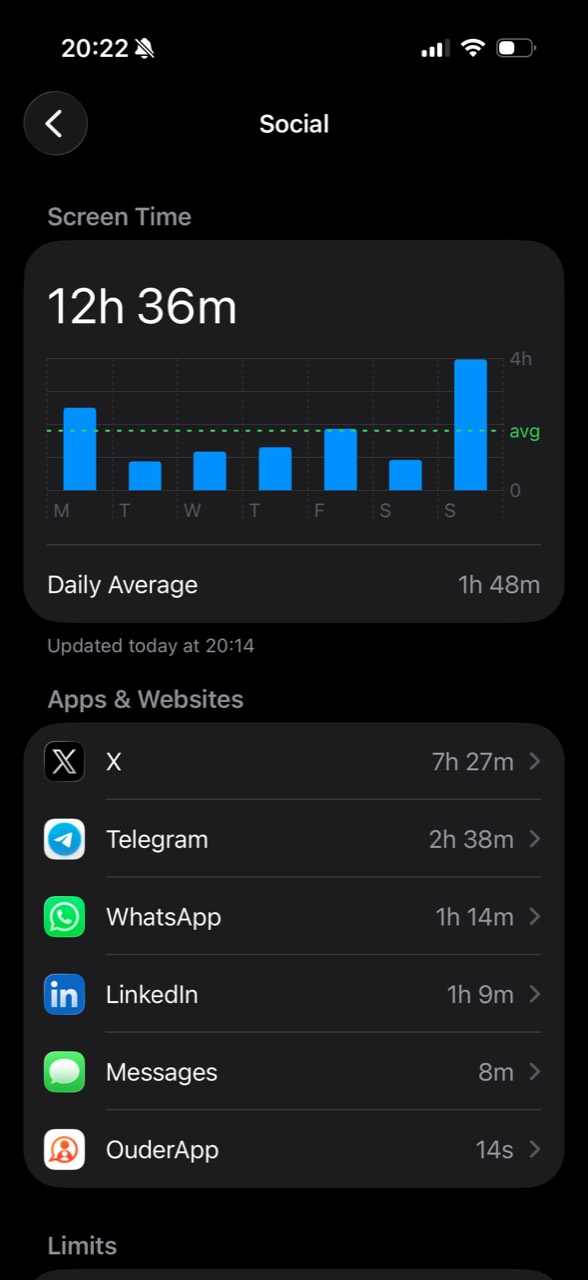
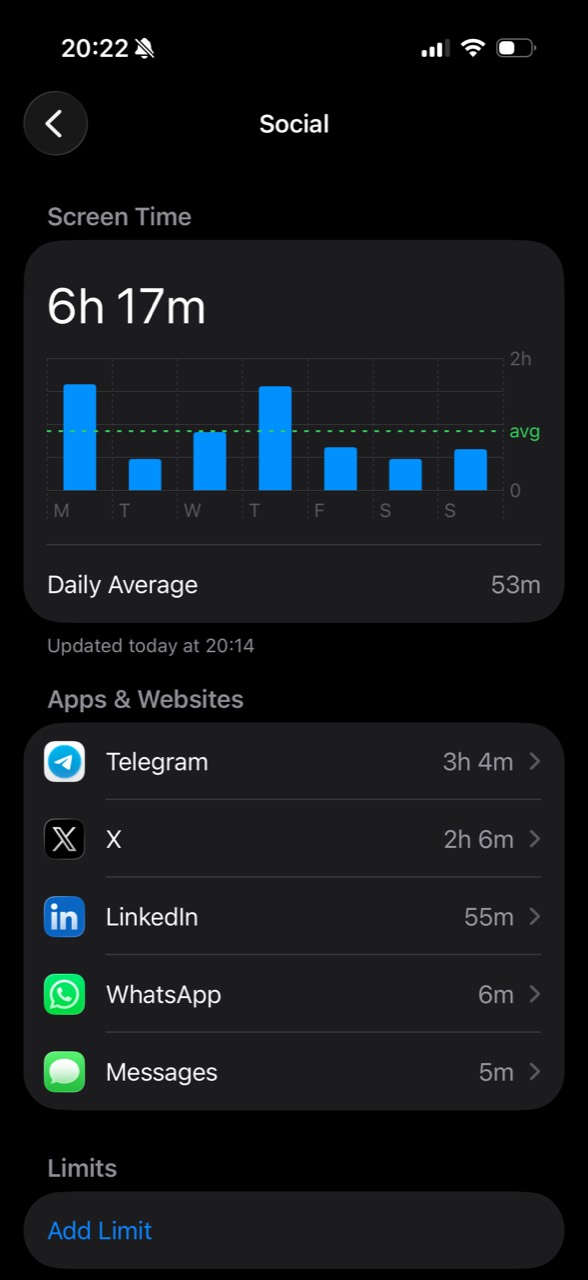
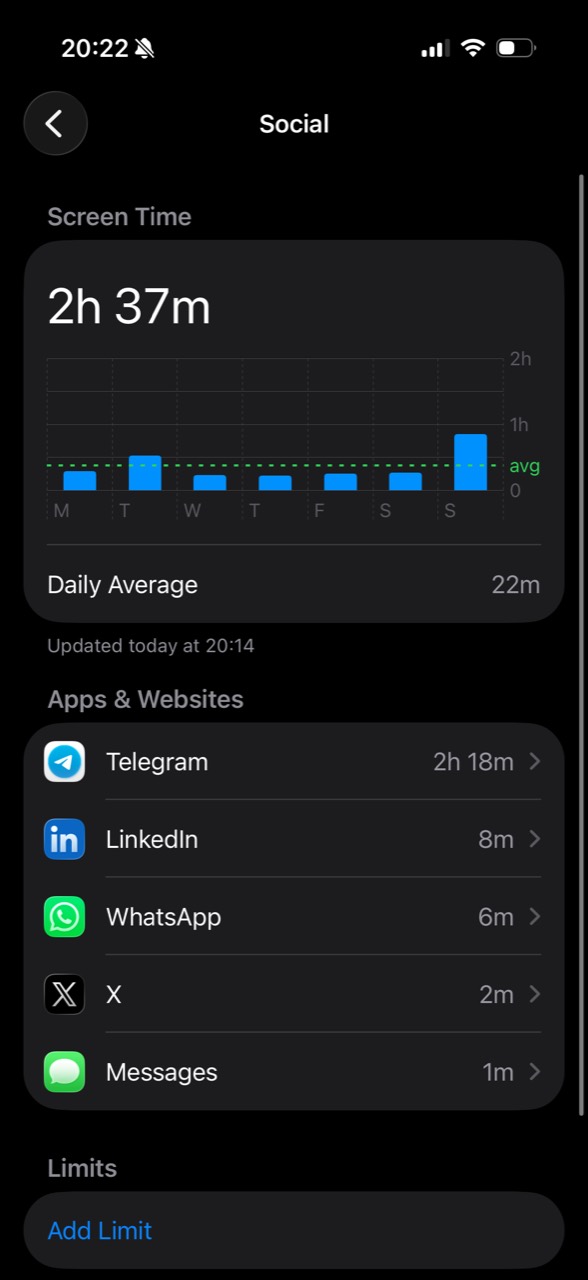
My weekly social-app time went from 12h 36m to 6h 17m, then 2h 37m. That’s 79% less time in the Social category in the latest week than in the oldest—9h 59m less. These are three full weeks from my own Apple Screen Time history, including messaging apps. This is my personal experience; your usage will be different.
A little help getting started
Choose the guide for your day.
Practical instructions for a schedule, an existing task list, or one app you keep opening.
- Block apps at certain times
Set a schedule for social breaks and work hours.
- Use Apple Reminders
Bring the tasks you already keep into view.
- Connect Todoist
Give your next Todoist task a place in the pause.
- Block Instagram on iPhone
Choose when to use the app, without deleting it.
Keep going
Make the boundary work in real life.
Want a day-by-day approach? Follow the free 14-day digital detox plan on paper or in a note.
Start with our practical plan to stop doomscrolling, then use the guides below for the part you want to change.
- What to do instead of scrolling
Choose a realistic activity for 2, 5 or 15 minutes, including rest.
- Block work apps after hours
Set weekday access and keep personal communication available.
- Block distracting websites on iPhone
Understand website selection, iOS menu differences and browser checks.
- Stop ignoring Screen Time limits
Find out whether the problem is a setting, an override or the wrong rule.
Find the fit for your day
Choosing between screen time apps?
Start with our best scroll-blocking apps for iPhone in 2026. Or compare Do Instead with Opal, ScreenZen, one sec, Jomo, and Freedom in detail, including when another app may suit you better.
Explore the comparisons →Before you start
A few useful details.
How is the free route different from scheduled blocking?
The free route uses an automation you create in Apple Shortcuts to open Do Instead when a chosen app opens. It is a gentler pause. Pro uses Apple’s Screen Time features to block selected apps outside your allowed times. The Setup and Block tabs explain each route.
Does completing a task give me more screen time?
No. You can complete a task because it matters to you. Your allowed times determine access to blocked apps; finishing a task does not unlock them.
Can I open my task manager from the blocking screen?
On iOS 26.5 and later, the task-manager action opens through Do Instead. Earlier versions offer a notification shortcut when notifications are enabled. You can also choose “Take a break” to step away without starting a task.
Will it block websites in every browser?
Website coverage depends on your browser and iOS version. Test the sites in the browser you actually use. Explicit website addresses can show Apple’s restriction page rather than Do Instead’s task screen. Blocking a website and blocking its app are separate choices.
Is there an Android app or desktop download?
Do Instead is available for iPhone. Chrome and Safari for Mac extensions are being prepared for their stores. The desktop guide explains the planned setup and publication status. There is no Android download.
Where does my task data go?
There is no Do Instead account, advertising, analytics, or tracking. Reminders are accessed on your device; optional Todoist requests go to Todoist. Read the privacy policy for permissions, purchases, and settings transfers.
Make room for what you’d rather do.
Start with your Apple Reminders for free. Add Pro when you want scheduled blocking and Todoist.