Start with one scrolling situation
To stop doomscrolling, choose one moment when you regularly scroll longer than you intended. Decide what you want to check, when you will stop, and what you will do next. Add a phone boundary if you need help following that decision, then test it in the app and browser you actually use.
- Notice the trigger: when, where and why you open the feed.
- Choose a boundary: a pause, a daily allowance or allowed hours.
- Prepare a next step: rest, connection, movement or a small task.
- Test the setup: keep necessary access and check the blocked routes.
- Review one example: change what did not fit your day.
You can start without installing anything. The aim is to leave the feed when you meant to, while keeping the information and conversations you value.
What counts as doomscrolling?
Doomscrolling usually means spending a long time consuming negative news online, often on a phone. That is the sense used by the Cambridge Dictionary. It is more specific than enjoying a few videos or reading an article you deliberately chose.
This plan also applies if your difficulty is ordinary mindless scrolling: opening a feed without a clear purpose and continuing beyond the time you wanted to spend. You do not need to label every phone session a problem. Start with the sessions you would actually like to change.
For news, a useful question is: “Am I learning something I can use, or refreshing the same story?” You can care about an event and still decide when to return for an update. A stopping point is easier to describe when you know what information you came for.
1. Describe one recent scrolling session
Use a specific event rather than a judgment about your willpower. “I opened the news after dinner and was still refreshing it when I meant to call a friend” tells you where to intervene.
Write down four details in a note:
- The cue: a notification, an idle moment, finishing work, or avoiding a task.
- The route: the app, website or link that led to the feed.
- The purpose: information, company, entertainment, rest or a break from something difficult.
- The missed stopping point: the moment you had intended to leave.
Choose one recurring situation for your first experiment. You do not need a complete history or a perfect screen-time total. A short description of what happened is enough to design a change you can check tomorrow.
2. Match the boundary to the moment
Different controls answer different questions. Choose the one that matches the session you described.
| Your pattern | Try first | What to watch for |
|---|---|---|
| You tap the feed without deciding to | A pause before opening, or moving the app away from your usual starting place | A pause asks for a decision; it may still allow access |
| You want a flexible daily budget | A daily time allowance | You can spend that allowance at an inconvenient time |
| You want dinner or bedtime free of the feed | A schedule with access only during chosen hours | An allowed window is not a minutes-used budget |
| You keep returning to the same news story | A planned update time and a named source to check | Another feed or browser can become the same loop |
| A work message starts the evening scroll | Notification choices and, if needed, a work-app schedule | Keep your agreed on-call route and personal communication available |
Swipe the table on a narrow screen.
Apple’s built-in Screen Time offers scheduling and usage controls; its labels differ by iOS version. Use Apple’s current guide and our guide to allowed times on iPhone for the setup that matches your phone. Focus can manage notification interruptions, but silencing a notification is different from preventing an app opening.
If you keep extending a limit, first find out whether the rule is only a reminder, covers the wrong time, or blocks something you genuinely need. Follow the decision tree for limits you keep ignoring before adding another restriction.
3. Give the interruption somewhere to lead
Choose your next action before the next automatic opening. “Use my phone less” leaves a blank space. “After dinner, put the phone on the shelf and make tea” gives you something concrete to do.
Match the alternative to what you wanted from scrolling. If you wanted company, message or call one person. If you wanted a rest, choose an option without an output requirement. If you were avoiding a task, make its first action small enough to begin without committing to the whole project.
Keep the starting point nearby: a book already open, a note with one task, or a saved message you want to answer. Our 2-, 5- and 15-minute alternatives to scrolling include rest, connection, movement and progress. Choose one option; there is no need to turn your break into a long checklist.
A worked example: leaving the news after dinner
This is an illustrative plan, not a customer result or a tested promise of improvement. Adapt the times and the source to your own routine.
The situation
After dinner, you open a news feed for an update. You keep refreshing it and miss the time you wanted to spend reading.
The revised plan
Check one chosen news source from 19:00 to 19:15. At 19:15, close it, put the phone on the shelf, and read the page you left open.
If you use a scheduled blocker, configure that period as allowed access on the days you choose. Decide whether you need other check-in periods as well; a single window would leave the selected service unavailable outside it while protection is on. If you use a timer instead, remember that it is a reminder to stop, not an access restriction.
For a developing event, decide what would justify an extra check: information that changes a practical decision, for example. Keep relevant official alerts and essential contacts available. The plan does not require ignoring a situation that affects you; it gives routine checking a place and an endpoint.
Make your own one-sentence plan
Copy this into a note and fill in the blanks:
When I reach for ___ after ___, I will check ___ until ___. Then I will put my phone ___ and do ___. I will review the plan after ___.
If your difficult moment is work spilling into the evening, use the after-hours work-app guide. If it is getting into bed with a feed open, choose a stopping point before that moment and put the replacement within reach. Keep any necessary alarm or communication access in mind.
4. Check the app, website and exceptions
Before relying on a new rule, try the route you normally take. A configuration screen is not evidence that every opening is covered.
- During a period you intend to protect, open the selected app and observe what happens.
- Try the same service’s website in each browser you use. App blocking and website blocking are separate checks.
- During an allowed period, confirm that access returns as intended.
- Check that necessary communication, personal email and your task manager remain available.
Use our website-blocking guide for browser differences and added-domain restrictions. Do not assume a successful Safari check proves the same result in another browser. For an Instagram-specific setup, see blocking Instagram without deleting it.
Whole-app blocking may also remove messages you want to keep. Do Instead does not selectively remove Instagram’s feed or Reels while leaving DMs available. If you need those messages, plan suitable access or choose an approach with the scope you need.
Where Do Instead and alternatives fit
A blocker is useful when it supports the boundary you have chosen. You may not need one if a clear stopping point and a different place for your phone are enough.
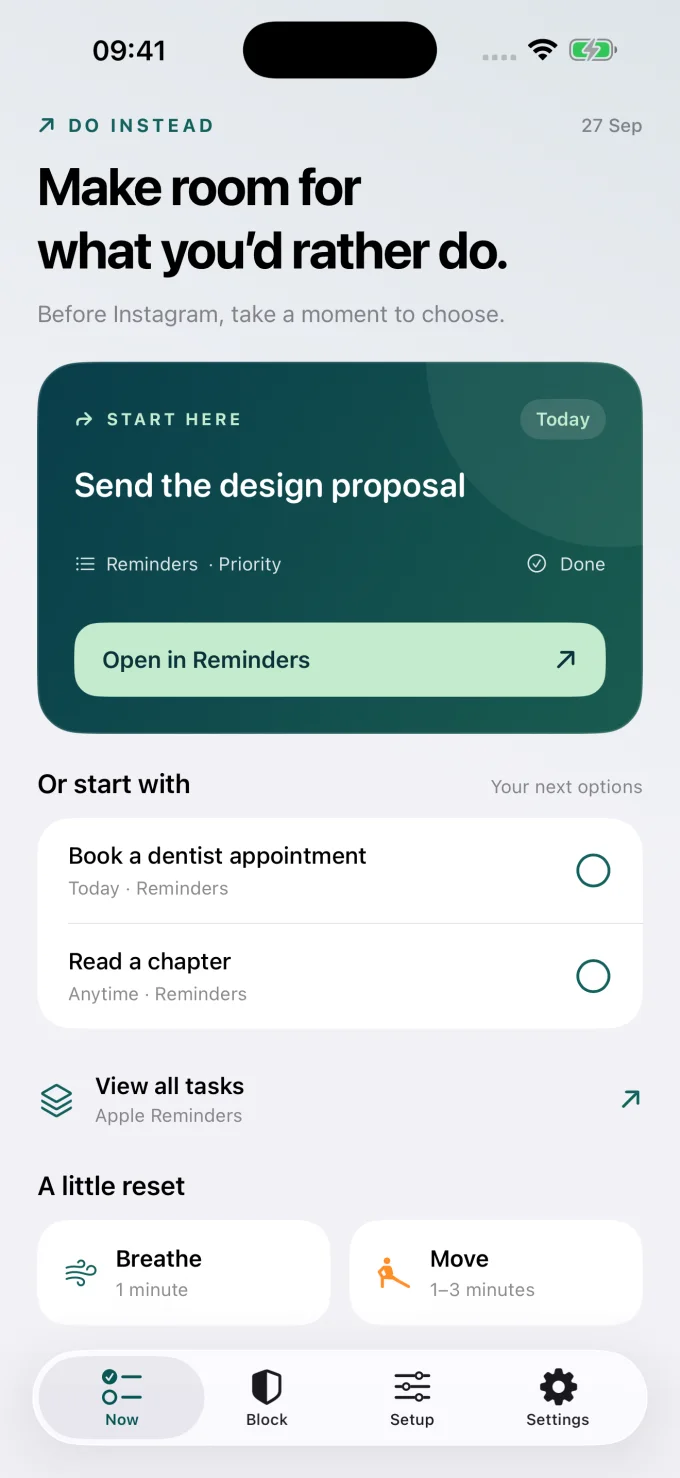
Do Instead for iPhone is relevant when you want a task from your existing list in view at the moment of distraction. Apple Reminders is free; Todoist requires Pro. The free Shortcuts workflow opens Do Instead as a pause when you launch a chosen app. It is not strict blocking.
Pro adds scheduled blocking with separate Social and Work allowed times and a ten-minute delay before turning protection off or widening access. Completing a task does not unlock apps or award screen time. See the public App Store listing for the current offer.
If your priority is the opening intervention, compare one sec and Do Instead. one sec also documents a Structured integration, so consider the planner you already use. If free blocking is the deciding factor, read ScreenZen vs Do Instead; ScreenZen describes donation-supported controls. Neither comparison establishes a guaranteed result for you.
For a wider choice of rules and device coverage, our six-app scroll-blocker guide explains the tradeoffs. Choose a feature that addresses your observed problem instead of switching apps simply to start over.
5. Review what happened without starting over
After a few attempts, write down one outcome. Did you leave at the stopping point? Did you get the information or conversation you wanted? Was the next action easy to begin? Pick a review time that suits you; this is not a claim that a habit changes in a fixed number of days.
- You opened a different app: check whether the same feed is available through an uncovered route.
- You needed legitimate access: adjust the window or selection rather than routinely disabling everything.
- You ignored the timer: consider whether an opening pause or schedule would fit better.
- The alternative felt like work: choose rest or enjoyment instead.
- The plan worked once and failed later: use the later example to change one part; you have not erased the earlier choice.
Your screen-time total can add context, but the particular moment matters too. Reading a useful article for fifteen minutes is a different outcome from refreshing a feed for fifteen minutes after you meant to stop. Judge the experiment against the time and purpose you chose.
Questions about stopping doomscrolling
How can I stop doomscrolling right now?
Close the feed, put the phone down, and decide what you opened it to find. If you still need an update, choose one source and an endpoint. Otherwise, start one small alternative that fits your energy. You can set a longer-term rule after leaving the current session.
Do I have to delete social media?
No. You can try a deliberate check-in, an opening pause or a schedule first. If the whole app is blocked, remember that its messages may be blocked too. Keep the access you need in the plan.
How do I stay informed without constantly checking?
Choose a source, a question you want answered and a time to check again. Keep important alerts that serve a practical need. You can follow an event without making an endless feed your default activity between updates.
Can I stop doomscrolling for free?
You can try this plan without a purchase: choose a stopping point, prepare an alternative and use the controls already on your phone. Do Instead offers free Reminders and a Shortcuts pause; scheduled blocking requires Pro. ScreenZen is another option to compare when free blocking matters.
Will an app cure doomscrolling or reset dopamine?
This guide makes neither promise. It offers a practical way to test boundaries around phone use, not a treatment or a guaranteed outcome. The useful question is whether the setup helps you leave the feed when you intended.
Choose one moment to change today
Name the situation, decide the boundary, and prepare a next action. Test the actual route you use, then adjust one detail based on what happened. You do not have to redesign your whole digital life before making one evening, break or work session more intentional.
Bring your own plans into view
Make room for what you would rather do.
Start with Apple Reminders and a pause before a distraction.
iPhone · iOS 17+. Reminders and the Shortcuts pause are free. Scheduled blocking and Todoist require Pro. This link opens the App Store; any Pro offer and trial terms are shown before purchase.