TL;DR
Start with the problem you want to solve.
ScreenZen →For free blocking, opening delays and configurable limits.
Opal →For usage rules, daily allowances and focus reports.
one sec →For interrupting automatic openings, especially if you use Structured.
Do Instead →For returning to tasks in Apple Reminders or Todoist.
Jomo →For habit rewards and a choice of unlock exercises.
Freedom →For blocking that follows you between phone and computer.
No extra app may be necessary if Apple’s built-in Screen Time already gives you the daily limits you need.
The six apps at a glance
Use this table to narrow the list, then read the tradeoff below each app. A free download does not necessarily mean that every blocking feature is free.
| App | Useful for | Approach | Free / paid boundary |
|---|---|---|---|
| ScreenZen | Free controls | Waits, opening counts, time limits and schedules | Free; optional donations |
| Opal | Rules and reports | Scheduled blocks, time/open limits and focus feedback | Free version; optional Pro |
| one sec | Pausing an impulse | Interventions, scheduled blocks and Structured integration | Free version for one app; Pro extends features |
| Do Instead | Returning to a task | Reminders/Todoist tasks plus separate allowed times | Free Reminders and Shortcuts pause; scheduling/Todoist need Pro |
| Jomo | Habit rewards | Rules, unlock exercises and earned-access Routines | Free download; optional Jomo Plus |
| Freedom | Multiple devices | Coordinated blocking sessions and recurring schedules | Limited free features; Premium and current trial offer |
Swipe the table on a narrow screen. Sources are linked in each app’s section. Features, subscriptions and trial eligibility can vary by platform, version and region; check the current offer before subscribing.
Scroll blocker, screen time limit or feed remover?
People use “scroll blocker” for several different jobs. Choosing the wrong kind can leave you with a perfectly functional app that does not solve your problem.
- A pause before opening interrupts an automatic action. It gives you a moment to decide, without necessarily denying access for the rest of the day.
- A daily allowance limits how much time, or how many opens, you give an app. It suits someone who wants flexibility about when that allowance is used.
- A scheduled block keeps an app unavailable during particular hours. It suits a work session, bedtime or planned social breaks.
- A feed remover hides a specific part of a service, such as a feed, while retaining other functions. That is a different requirement from blocking the whole app.
This guide compares approaches to managing app access. It does not establish that these apps can remove only Instagram Reels, TikTok’s feed or another part of a native iPhone app while leaving messages available. Do Instead does not offer that selective feed removal. If you need social messaging for work, decide how you will keep that access before blocking the app.
How we chose these apps
We reviewed US App Store listings and official documentation for established apps that help adults manage their own distracting phone use. The five alternatives cover distinct decisions; Do Instead adds the workflow we know directly as its developer. The order is for reading, not a performance ranking.
We compared the type of boundary, what happens at an attempted opening, connections to existing plans, free versus paid access, and coverage beyond iPhone. We also considered what a person would give up when switching. We did not measure reductions in screen time, bypass resistance or long-term outcomes across all six products, so there are no numerical scores or effectiveness promises.
The details were checked on 20 October 2026. Do Instead information describes public version 1.1.3. We leave out fixed subscription prices where offers vary, and avoid exact Opal rule allowances because its published pages differ. This list is selective rather than exhaustive: Clearspace and AppBlock are other candidates, and parental controls are outside this guide’s scope.
01 · Free blocking
ScreenZen: start here if price is the deciding factor
ScreenZen is a practical first option when you want to control distracting app use without paying for a blocking subscription. Its official site says the app is free, supported by optional donations. That is a meaningful distinction from an app that is free to download but charges for the boundary you need.
Its published controls include a wait before opening an app, short access periods, schedules, and limits based on time or number of opens. It also offers activities during the wait. This combination suits someone who keeps checking the same app in small bursts as well as someone who wants a defined access period.
A good fit when
You want to experiment with a wait or opening limit, and free blocking matters more than a particular task-manager connection.
Consider the tradeoff
First decide whether you need an opening count, minutes per day or a schedule. Configure one clear rule before adding several controls at once.
If you already use ScreenZen successfully, a different app needs to add something you actually value. For Do Instead, that reason would be bringing your existing Reminders or Todoist tasks into the pause—not a claim of cheaper blocking.
Cost model: free with optional donations, according to ScreenZen’s website.
Sources: ScreenZen’s official features and FAQ; ScreenZen on the App Store.
02 · Rules and focus reports
Opal: consider it for daily limits and feedback
Opal fits the question, “How much access do I want to allow, and how am I doing?” Its current help center describes scheduled sessions, time limits, opening limits, timers, focus reports and a daily score. If your goal is a daily allowance, this is more directly relevant than a tool organized only around allowed hours.
Its Pro options also include stricter rule settings. The documentation explains restrictions on unblocking and resetting, as well as emergency access. Read those details when choosing a commitment you will live with; “strict” is useful only if you understand what you can change during a session.
A good fit when
You want rules and feedback in the same product, or you specifically want a time or opening allowance rather than only a schedule.
Consider the tradeoff
Check which controls your plan includes. Published Opal pages give different numerical rule allowances, so this guide does not promise a specific free quota.
Usage feedback and a suggested task answer different questions. Opal helps you evaluate the boundary; Do Instead is relevant when seeing what you intended to do is the missing step. Neither requires treating a lower screen time number as the only useful outcome.
Cost model: a free version and optional Pro. Check the current in-app offer and Opal’s plans.
Sources: Opal’s feature guide; rule restrictions; Opal on the App Store.
03 · Interrupting automatic openings
one sec: consider it for the pause before scrolling
one sec is relevant when opening the app is the habit you want to notice. It puts an intervention, such as a breathing pause, between the impulse and access. Its published feature set also includes other interventions, alternative activities and scheduled blocking, so describing it as only a breathing timer would miss important options.
Its Structured integration is especially relevant if that is where you plan your day. The official integration page describes showing upcoming tasks and blocking distractions during unfinished tasks. That gives an existing Structured user a concrete reason to try one sec before moving to another planner.
A good fit when
You want to notice an automatic opening, or you want your blocker to connect with a Structured plan you already use.
Consider the tradeoff
The free version covers one app according to its help documentation. Check Pro if you want wider coverage, and distinguish an intervention from a scheduled block.
The planning connection is the useful comparison with Do Instead: Structured on one side, Apple Reminders or Todoist on the other. Keep the planner that works for you. Also decide whether unfinished tasks should affect access; completing a task in Do Instead does not unlock a blocked app.
Cost model: free for one app; Pro extends coverage and features.
Sources: one sec’s features; Structured integration; free and Pro details; one sec on the App Store.
04 · Returning to an existing task
Do Instead: consider it for Reminders and Todoist
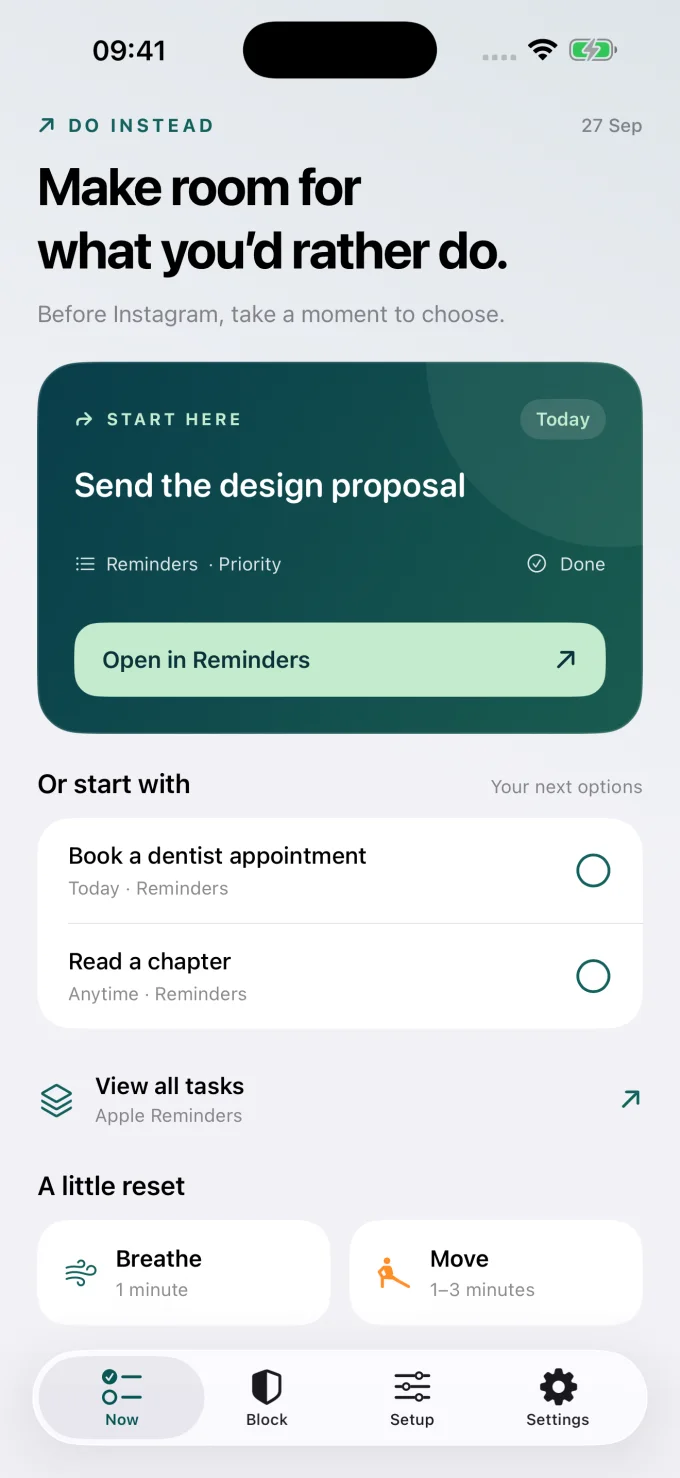
Do Instead is the app I build. Its focus is the transition from reaching for a distraction to seeing something you already chose to do. It connects to Apple Reminders for free and Todoist with Pro, bringing a next task into view rather than requiring you to recreate your list in a new planner.
You can start with the Now screen, a Home or Lock Screen widget, and a free Shortcuts automation that opens Do Instead when a chosen app opens. The Shortcuts route is a gentler pause. Scheduled blocking requires Pro and uses separate Social and Work allowed windows. With protection on, loosening it takes ten minutes to apply.
A good fit when
Your commitments already live in Reminders or Todoist, and seeing one is a useful next step after an impulse to scroll.
Consider the tradeoff
Scheduled blocking is paid. The released workflow uses allowed hours rather than daily usage quotas. The public download is for iPhone; desktop extensions are not yet published.
Finishing a task does not earn minutes or unlock apps. Your allowed schedule controls access separately. You can also choose breathing, desk movement or simply putting down your phone. If you want task completion to award scrolling time, Jomo’s Routines are more directly relevant.
Cost model: Reminders, widgets, breathing, movement and the Shortcuts pause are free. Pro adds scheduled blocking and Todoist. Available trial terms appear in-app; the free download does not promise a Pro trial.
Sources: Do Instead’s public App Store listing; Free and Pro features.
05 · Habits and earned access
Jomo: consider it when access is the reward
Jomo offers several ways to structure a boundary: schedules, usage limits, Locks, Routines and Strict Mode. Its published 2.0 release notes describe Routines that let completed habits unlock apps or earn time. That makes it relevant if a screen time reward is part of the routine you want to build.
Its feature page also lists different unlock exercises, including waiting, entering a reason, passwords, QR codes and AI proof. These are choices to examine, rather than a guarantee that every rule will be impossible to bypass. Jomo can also be used for ordinary blocking; rewarded habits are one option, not its only purpose.
A good fit when
You want to connect a completed habit with earned access, or you prefer to choose among several unlock exercises.
Consider the tradeoff
Decide whether you actually want scrolling to be a reward. If you prefer tasks and app access to stay separate, an allowed-time workflow may be a better match.
A changing task list and a repeated habit are different starting points. “Return a client’s call” might belong in your planner, while a repeatable routine might suit a reward rule. Choose based on the behavior you intend to repeat, not simply the number of features available.
Cost model: free download with optional Jomo Plus purchases. Check the current plan for the features you intend to use.
Sources: Jomo’s features; habit rewards; Jomo on the App Store.
06 · Phone and computer
Freedom: consider it when distractions move between devices
If blocking an app on your phone sends you straight to the same service on a laptop, device coverage should come before the details of an iPhone pause. Freedom documents synchronized blocking sessions, immediate and recurring schedules, and Locked Mode. Its site lists support for Mac, Windows, iOS, Android, Chromebook and Linux.
That makes Freedom a clear candidate for someone whose distraction habit crosses devices. Check the features on your specific combination of systems; support for a platform does not mean every blocking method behaves identically on all platforms.
A good fit when
You want a shared focus period across your phone and computer, with recurring sessions for a predictable work routine.
Consider the tradeoff
If the problem is confined to your iPhone, broad device coverage may matter less than the opening experience or the planner you already use.
Do Instead’s public iPhone release should not be presented as a replacement for Freedom’s desktop and Android coverage. You can explore Do Instead’s Reminders view or widgets without replacing a computer setup that works, then evaluate active blocking configurations one at a time.
Cost model: limited free features and Premium. Check Freedom’s current trial and subscription offer.
Sources: Freedom’s platforms and feature overview; Freedom on the App Store.
Before downloading: try Apple Screen Time
You may already have enough control built into your iPhone. Apple’s Screen Time offers App Limits for individual apps or categories, Downtime for scheduled periods, and Always Allowed choices for access you want to keep. It is a sensible starting point if your main requirement is a basic allowance or schedule.
A dedicated app becomes more interesting when you want something specific beyond that starting point: an opening ritual, different rule controls, coordinated sessions across devices, or an existing task in view. Write down the missing feature before buying another subscription.
For Apple’s current setup and the effect of its blocking settings, use the official Screen Time guide. If you choose Do Instead, our scheduled blocking guide explains its different allowed-window approach.
How to choose a blocker you will keep using
- Describe one recurring moment. “I lose twenty minutes after checking Instagram at lunch” is easier to design around than “I should use my phone less.” For repeated openings, explore ScreenZen or one sec. For a daily allowance, compare ScreenZen and Opal. For a work or evening boundary, examine schedules.
- Choose what should happen next. A pause may be enough. A reminder may help you return to a real commitment. A habit reward may motivate you, or it may make access feel like the main goal. Compare one sec, Do Instead and Jomo on this question before comparing their longest feature lists.
- Check the whole route to the distraction. Include the browser and computer if you use them for the same service. Freedom is particularly relevant when the boundary needs to follow you between devices. For any app, check browser behavior on your own iOS version.
- Try one configuration during ordinary days. Use the free features where available. Notice whether you return to what you intended, whether needed communication stays accessible, and whether the rule is clear. Evaluate one active blocking setup at a time so you know which app controls access.
Before subscribing, confirm the exact feature you need is included, the price in your region, and the renewal terms of any trial. A useful rule that fits your day is a better starting point than the most restrictive configuration you can create.
Questions about iPhone scroll blockers
What is the best free social media blocker for iPhone?
ScreenZen is our first shortlist option when free blocking is the priority because its official site says the app is free with optional donations. Apple’s built-in Screen Time is also worth trying. Do Instead has ongoing free features, but its scheduled blocking requires Pro.
Can I block Instagram’s feed but keep DMs?
Do not assume an app blocker can do that. Restricting the whole Instagram app is different from removing its feed. Do Instead does not selectively preserve DMs while blocking Reels or the feed. See our Instagram blocking guide for the scope of its app-level approach.
Which app works with a task manager?
Do Instead connects to Apple Reminders for free and Todoist with Pro. one sec has a documented Structured integration. Choose the connection that matches the planner you already use, then check whether task completion affects access in the workflow you select.
Can I earn screen time by finishing a habit?
Jomo’s documented Routines are relevant to earned access or time. Do Instead works differently: completing a task does not unlock apps or award minutes. With Pro, its allowed times determine access.
Are a daily limit and an allowed window the same?
No. A daily limit is an allowance you use up. An allowed window is a period when access is available. If you want thirty minutes at any time, examine daily limits. If you want access only over lunch, examine a schedule. Do Instead’s released Pro workflow uses allowed windows.
Will a blocker guarantee that I stop doomscrolling?
No result is guaranteed here. The apps provide different boundaries and prompts; this research did not measure their long-term effects or compare every way around a block. Try the specific behavior you want to change and judge the result in your own day.
Does “Try Do Instead for free” start a subscription?
The link opens the App Store download. Reminders, widgets, breathing, movement and the Shortcuts pause can be used without Pro. If you choose a Pro offer inside the app, Apple shows its price and any eligible trial terms before you confirm.
Our recommendation: match the boundary to the habit
Start with ScreenZen if you want free blocking, or Apple Screen Time if a basic built-in limit is enough. Consider Opal when usage rules and feedback are central. Look at one sec for the opening pause and its Structured connection, Jomo for habit rewards, and Freedom when you need a boundary across devices.
Choose Do Instead when the useful thing in that recovered moment is a task you already keep in Reminders or Todoist. You can explore the free Reminders and Shortcuts workflow before deciding whether scheduled blocking is worth adding. The aim is a choice you can use tomorrow, not switching away from a setup that already works.
Bring your own plans into view
Give your next task a chance.
Connect Apple Reminders and try the free pause.
iPhone · iOS 17+. Scheduled blocking and Todoist require Pro.