TL;DR: choose a restriction or a schedule
For a fixed restriction on iOS 26, Apple documents adding a site under Screen Time’s Web Content → Never Allow list. Newer iOS versions have different controls, so use the version notes below.
For access during chosen hours, Do Instead Pro lets you select websites in a Social or Work group and set allowed times. Test every browser and browsing mode you use. Website restrictions can behave differently from an app shield.
Choose the scope before changing settings
| Your goal | Approach | Important distinction |
|---|---|---|
| Keep one site unavailable | A fixed website restriction | It is not a lunch-break schedule |
| Allow a site only at chosen times | Scheduled website blocking | The window grants access; outside it is blocked |
| Stop switching from app to browser | Select the app and website separately | App selection alone is not a website check |
| Hide a feed but keep the rest of a service | A tool specifically supporting that service and feature | Whole-app or domain blocking does not selectively preserve messages |
| Cover phone and computer | Check a cross-device blocker | An iPhone restriction does not extend to every other device |
Swipe the table on a narrow screen.
Write down the actual address you open, including any alternate version you regularly use. Keep the first rule narrow. Blocking an entire browser may stop a distraction but can also remove access to useful research, tickets and account pages.
Apple Screen Time: the documented iOS 26 route
For your own iPhone on iOS 26, Apple gives this route:
- Open Settings → Screen Time → Content & Privacy Restrictions and enable the restrictions.
- Open App Store, Media, Web, & Games → Web Content.
- Select Limit Adult Websites. Under Never Allow, use Add Website and enter the address you want to restrict.
This choice also enables Apple’s adult-content filter; it is not only a standalone list for distracting sites. See Apple’s version-specific website instructions.
If you use iOS 27
Do not assume those older menus still exist. Apple’s current iPhone content-restriction guide does not document the same adult self-management website path. Its current parental-control instructions instead describe a child’s Apps & Websites controls through Family. Those are a different account context.
Use Apple’s guide for your installed version and account type. We have not verified an equivalent iOS 27 adult website-menu path on a physical device, so we do not present a guessed sequence as instructions. The scheduled Do Instead workflow below is a separate option, with its own browser checks.
Schedule website access in Do Instead
Do Instead for iPhone organizes selected apps and websites into Social and Work groups. Website scheduling is part of Pro. The steps here describe public version 1.1.3.
- Open the blocking setup and grant the requested Screen Time access.
- Choose Social or Work according to the schedule you want.
- Select websites in Apple’s picker. If a site is missing, use Do Instead’s Add or import websites route to enter an address, then select it.
- Create allowed times and turn Shield on.
- Outside an allowed window, reload the site in your browser and confirm what happens.
For example, a Social window from 12:30 to 13:00 permits the selected sites over lunch on the days you choose. It does not block that half-hour. With Shield on, a group with no allowed windows blocks its selected items all day. Our allowed-times guide explains the schedule in more detail.
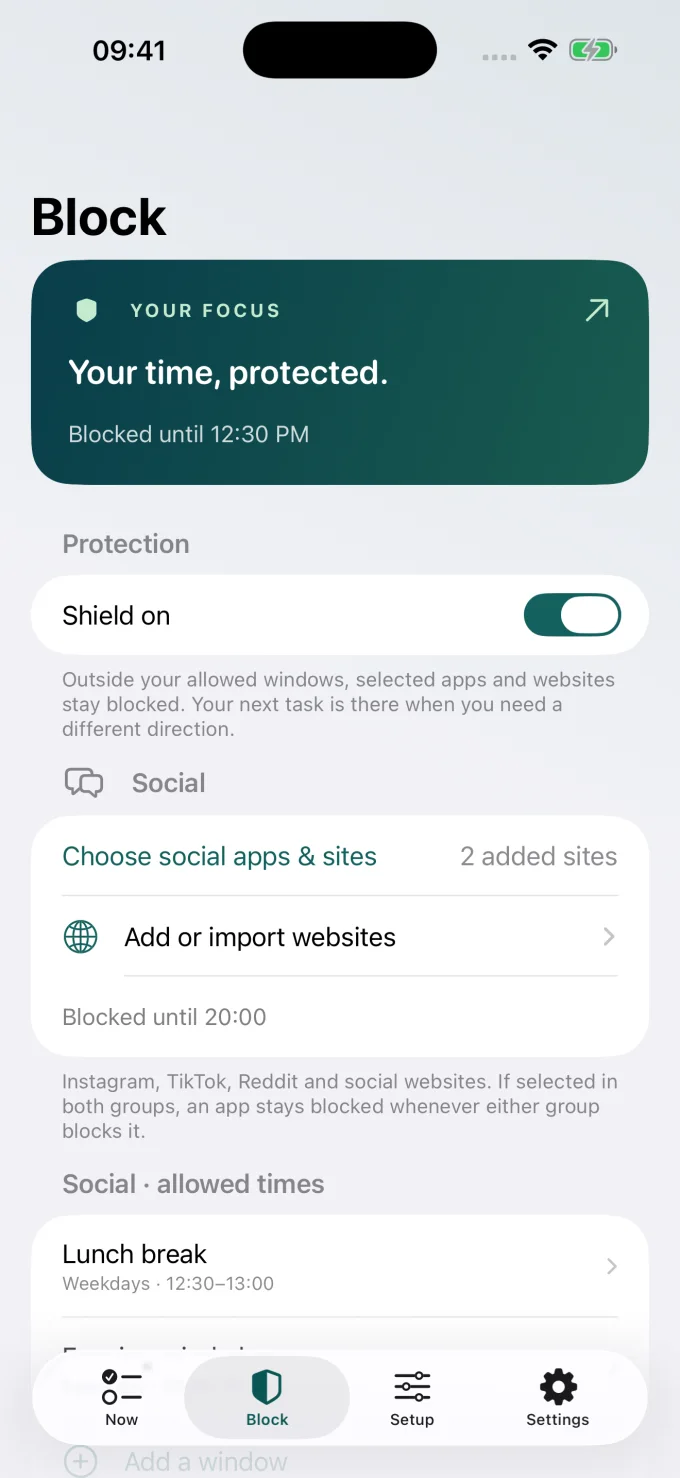
Apple’s picker is not a complete browser-history list. If you cannot see a familiar site, that alone does not mean it is unsupported or already blocked. Use the app’s website-entry route and then test the specific address.
Why the blocking screen can look different
There are two relevant website paths in Do Instead’s released implementation. Websites selected through Apple’s picker can use Screen Time website shields. Explicitly added domains use Apple’s web-content restrictions and can show Apple’s own restriction page instead of Do Instead’s task screen.
That distinction affects what you should expect to see. A different restriction screen does not necessarily mean the rule failed. Conversely, a successful block in one browser does not prove every browser is covered.
- Safari and other browsers: enforcement depends on iOS and browser support. Chrome may not enforce every website restriction in the same way.
- Private browsing: added-domain restrictions can affect the availability of Safari Private Browsing. Check the effect before adopting that route.
- Domain count: the released added-site route supports up to 50 added sites across Social and Work combined.
- Native apps: select the app separately if you also want its native experience restricted.
These details are documented in the released app’s browser help and summarized in Do Instead support. They are reasons to test your setup, not a promise of universal browser coverage.
A five-minute website blocking check
Choose one site and a blocked period. Keep an unrelated useful site available as a comparison. Record the browser, browsing mode and address for each check.
- Reload the selected site. Check a new navigation as well as the already-open tab.
- Repeat in every browser you use. Include links opened inside other apps if those are part of your routine.
- Check private mode where it remains available. Do not assume it behaves identically to a normal tab.
- Check the native app separately. For Instagram, follow the app and website guide.
- Repeat during an allowed window. Confirm that access returns when you intended, and that useful sites still work.
If the site still opens, check its selection, the active group, the allowed window, authorization and the address being loaded. If you need stronger coverage in a browser that does not enforce the site rule, blocking that browser app may be an option—but only if losing its other uses is acceptable. Do not describe a setup as working until you have checked your own browsing route.
Compare coverage before changing apps
If the same distraction follows you to a computer, Freedom vs Do Instead is the relevant comparison. Freedom’s official site describes its supported platforms and coordinated sessions. Do Instead’s desktop store publication is still pending, so this article does not offer it as a currently downloadable cross-device solution.
If free controls are your first requirement, read ScreenZen vs Do Instead. ScreenZen describes a free app with optional donations. Check its current website and browser support for your particular use case. Do Instead’s free features include Reminders and the Shortcuts pause; scheduled blocking requires Pro.
Website blocking questions
Why can I open the website when the app is blocked?
The native app and the website are separate access routes. Check that the website is selected and verify it in the browser you actually use.
Can I block only Instagram Reels or a website feed?
Do Instead does not promise selective removal of Reels or a feed while keeping messages. App and domain restrictions have a broader scope.
Why do I see Apple’s restriction page instead of a task?
Explicitly added domains can use Apple’s web-content restriction page. That route is different from a website shield that can show Do Instead’s experience.
Will this work in every browser?
No universal coverage is promised. Test each browser and browsing mode, including the allowed period. If a route remains available, decide whether a different tool or an app-level browser block fits your needs.
Test the address, the browser and the time
A useful website rule has three parts: the right address, the intended access period and a browser where the restriction works. Start with one site, verify both blocked and allowed access, and only then expand the list. Add a small alternative to scrolling so the interruption has somewhere useful to lead.
Bring your own plans into view
Make room for what you would rather do.
Start with Apple Reminders and a pause before a distraction.
iPhone · iOS 17+. Reminders and the Shortcuts pause are free. Scheduled blocking and Todoist require Pro. This link opens the App Store; any Pro offer and trial terms are shown before purchase.