TL;DR: silence interruptions or close access
Use Focus if notifications are the problem. Use an app-blocking schedule if you keep opening work apps yourself. In Do Instead Pro, put those apps in the Work group and set the hours when access is allowed, such as Monday–Friday, 09:00–17:00.
With that example and Shield on, access is blocked outside those hours, including weekends with no allowed window. Check shared email apps and any on-call needs before turning the rule on.
Which boundary solves your problem?
| What happens after work | Useful starting point | What it does not solve |
|---|---|---|
| A notification pulls you back in | Scheduled Focus and notification choices | You can still choose to open the app |
| You open Slack or email without a notification | An app access schedule | Blocking a whole app cannot separate its accounts |
| You need occasional planned evening access | A narrow, explicit allowed window | An always-open exception removes the boundary |
| You switch from phone to laptop | A tool with the device coverage you need | An iPhone-only rule does not govern your computer |
Swipe the table on a narrow screen.
Keep the first setup small. Start with the one or two apps you most often check after finishing work. Do not block your task manager simply because some tasks are work-related; you may want it available for personal plans.
Start with Focus for notification interruptions
In Settings → Focus, choose or create a Focus for your personal time. Configure its People and Apps notification choices, then use Add Schedule for your off-hours. A supported app’s Focus filter can narrow what it shows, such as a Mail account. This is not an app-opening block. See Apple’s Focus setup guide.
Give the Focus a name you recognize, such as “Evening,” and check which people should still reach you. If silencing interruptions is enough, you may not need another app. If you still tap the inbox repeatedly, keep the notification setup and consider a separate access boundary.
Apple’s built-in schedule: check your iOS version
On iOS 26, Settings → Screen Time → Downtime lets you schedule unavailable periods. With a Screen Time passcode, Block at Downtime changes the reminder into a block. Review Always Allowed exceptions. Apple’s iOS 26 instructions describe this version.
On iOS 27, Apple documents Screen Time Schedule and Time Allowances instead. Use the schedule’s time windows and category choices, and review Always Allowed. Follow Apple’s current scheduling guide if those are the labels on your phone.
A daily allowance answers “how much?” An after-hours boundary answers “when?” Choose the latter if you want the inbox unavailable at dinner even on days when you barely used it.
Set Work allowed times in Do Instead
Do Instead has separate Social and Work groups. Scheduled blocking requires Pro; the free download lets you explore Reminders and the Shortcuts pause first.
- Open Do Instead’s blocking setup and allow the Screen Time access it requests.
- Choose the Work group and select the work apps you want to restrict, such as Slack, Teams or a separate work email app.
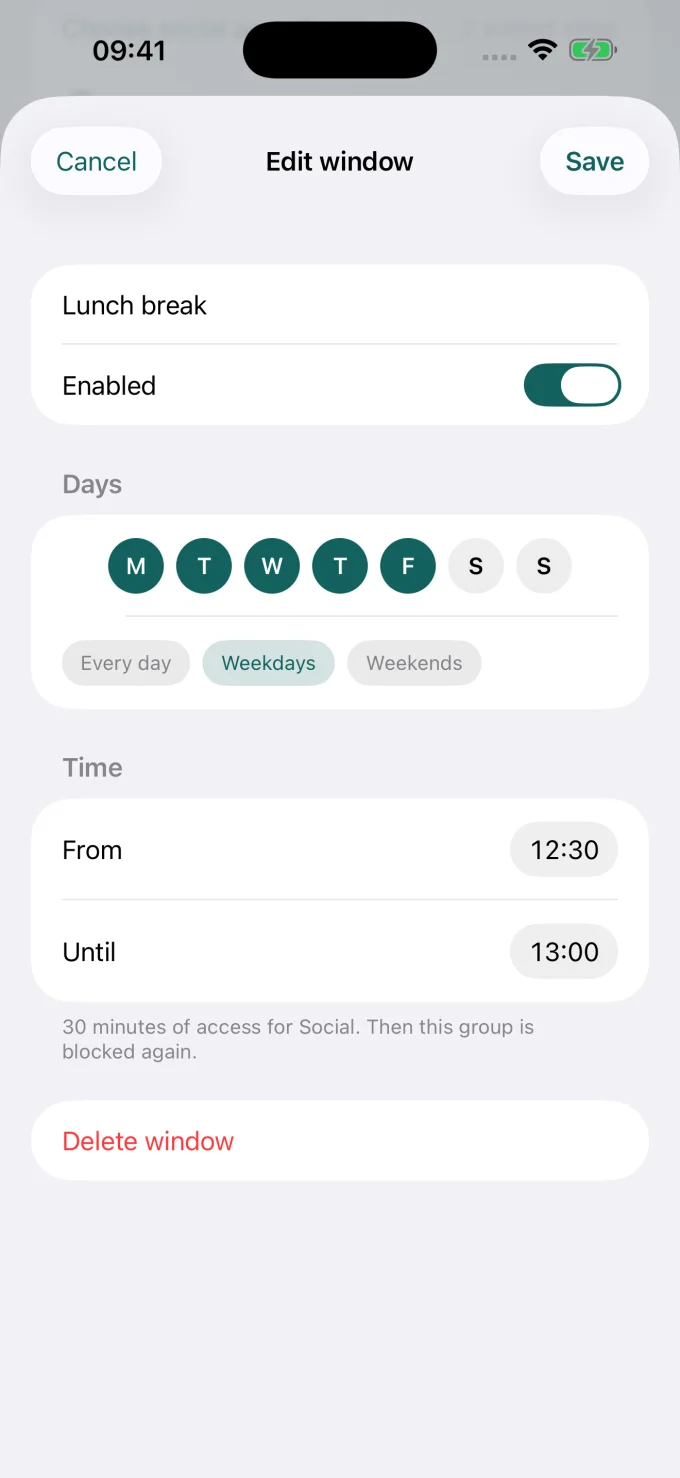
- Set allowed times for the days you work. These are hours when the selected apps may open, not hours to block them.
- Turn Shield on. Check both an allowed period and a blocked period.
For a regular office week, use this as an example to adapt:
| Day or time | Allowed window | Expected access with protection on |
|---|---|---|
| Monday–Friday | 09:00–17:00 | Selected Work apps available during the window |
| Weekday before 09:00 or from 17:00 | No window at these times | Selected Work apps blocked |
| Saturday and Sunday | No allowed windows | Selected Work apps blocked all day |
Swipe the table on a narrow screen.
With Shield on, a group with no allowed windows blocks its selected apps all day. Do not leave the schedule empty expecting unrestricted access. If the same app is in both Social and Work, it can be blocked by either group; avoid overlapping selections unless that is intentional.
Personal email, on-call work and weekends
A shared email app needs special care
Blocking an app affects the app, not just its work account. If you use the same Mail or Outlook app for personal and work messages, an app-level block can remove access to both. A Focus filter may suit the account distinction better; a separate work app can also make an app-level boundary easier to understand.
Plan necessary access before the boundary starts
If you are on call, agree how you will be reached and keep that route available. For an occasional planned check-in, create a short allowed period on that day. Do Instead’s protection includes a ten-minute delay before turning off blocking or widening access; it is not designed as an instant exception button.
Choose what “weekend off” means
No weekend Work windows means blocked work apps throughout the weekend while Shield is on. If you work Saturdays, add your actual Saturday hours instead. A schedule should describe your life, including shifts and planned exceptions, rather than a standard office week you do not follow.
Check the boundary before relying on it
- During an allowed period, open a selected Work app and confirm access.
- During a blocked period, close and reopen that app and check that the block appears.
- Open your personal email, calendar and essential communication apps to confirm they still work as intended.
- If you also use a work website, check it separately in each browser you use. Selecting an app is not the same as selecting its website.
- Review the next weekend and the next workday, especially when changing shifts or travelling.
If access is wrong, check the group selection, allowed times, enabled protection and Screen Time authorization. Also check whether another group is blocking the same app. Our scheduling guide explains the general model; the website guide covers browser-specific checks.
When another tool fits better
Choose a tool for the devices and rules you actually need. Freedom documents coordinated blocking across phones and computers; read Freedom vs Do Instead if your after-hours checking moves between devices. Its official site lists current coverage.
For a mix of schedules, usage allowances and focus reports, see Opal vs Do Instead. Opal’s published Pro features describe its controls. Do Instead is more relevant when you want your own Reminders or Todoist tasks in view at the interruption. None of these comparisons establishes that one app is impossible to bypass.
After-hours blocking questions
Can I block Slack but keep personal messages available?
You can select Slack without selecting a separate personal messaging app. If personal and work messages share the same app, app-level blocking cannot separate them.
Does Focus stop me opening Teams?
Focus manages interruptions and supported filters. It is not the same as a scheduled app-opening block.
Will completing a Do Instead task unlock work apps?
No. Task completion does not award access. The allowed schedule determines when the selected apps are available.
Is the Work schedule free?
Scheduled blocking is a Pro feature. Apple Reminders and the Shortcuts opening pause are available without Pro; that pause is not strict blocking.
Make the end of work a clear boundary
Start with notifications if they are the only interruption. If you keep checking manually, choose a work access schedule, preserve personal communication, and test it before the evening begins. Then decide what you would rather do with that time.
Bring your own plans into view
Make room for what you would rather do.
Start with Apple Reminders and a pause before a distraction.
iPhone · iOS 17+. Reminders and the Shortcuts pause are free. Scheduled blocking and Todoist require Pro. This link opens the App Store; any Pro offer and trial terms are shown before purchase.