Your task list can be the alternative to a scroll. Do Instead reads your existing reminders and shows a short list of next steps. With Pro scheduled blocking, a task also appears when you open a protected app outside its allowed time.
Connect Apple Reminders
- Open Do Instead → Settings. Find Where do your tasks live? and turn on Apple Reminders.
- Allow access to Reminders. Grant the requested permission so Do Instead can read your tasks and let you mark them complete.
- Open the Now tab. Look for a task you recognize. Today’s tasks come first, followed by overdue work and undated tasks; priority helps break ties.
- Choose a task. Use the Reminders action to return to your task manager, or mark a finished task done in Do Instead.
You can keep both Reminders and Todoist selected. If you prefer one source, choose it in Settings. Todoist needs Pro; Apple Reminders does not.
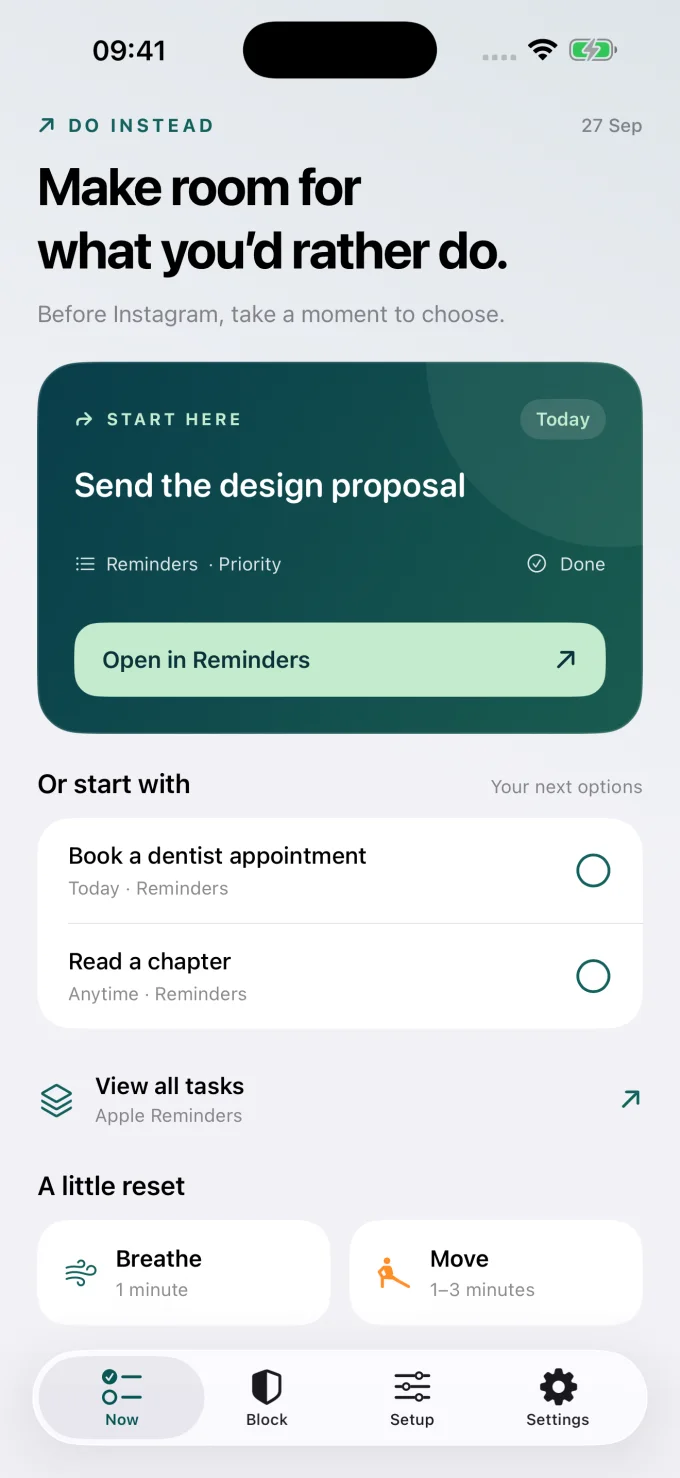
What happens when you reach for a distraction?
First, connect Reminders. Then choose which kind of pause you want.
A free pause using Shortcuts
The Setup tab explains how to create an Apple Shortcuts automation that opens Do Instead when a chosen app opens. You arrive at your tasks and can choose a next step, a breathing break, or movement. This route creates a pause; it does not provide Pro’s scheduled shield.
A task on the blocking screen with Pro
Use the Block tab to choose apps and set allowed times. When a selected app is blocked, the screen shows a task and its source. The task-manager action lets you head toward your list; “Take a break” lets you step away.
On iOS 26.5 and later, the task-manager action opens through Do Instead. On earlier versions, a notification shortcut is offered when notifications are enabled. Open Do Instead directly whenever you want to explore more tasks.
Completing a reminder does not unlock the distracting app. Allowed times control access. A task is another direction you can choose, not a condition you have to satisfy.
What is free, and what needs Pro?
- Free: connecting Apple Reminders, seeing tasks in Do Instead, Home and Lock Screen widgets, the Shortcuts route, breathing, and desk movement.
- Pro: scheduled blocking, Social and Work allowed windows, the ten-minute cooldown before widening access, and Todoist integration.
See the full Free and Pro comparison. Subscription prices and eligible trials are displayed in the app for your region.
If your reminders are not showing
- Open Apple Reminders and confirm that the task is present and unfinished. If it is stored in iCloud, allow the Reminders app to finish syncing to this phone.
- Return to Do Instead Settings and confirm Apple Reminders is selected.
- If access is off, check iPhone Settings → Privacy & Security → Reminders and allow Do Instead to access reminders.
- Return to the Now tab. An upcoming task may appear after today’s or overdue work; it will not necessarily be the first suggestion.
If you are blocking apps, make sure Reminders itself is still available. Test opening it while your distractions are blocked. If the list is still empty, contact support with the app version and what the permission screen says. You do not need to send your task contents.
Your task list stays in your task manager
Do Instead accesses Reminders on your iPhone. Your own Apple/iCloud settings still determine how Reminders syncs between Apple devices. There is no Do Instead account, advertising, or tracking.
Apple Reminders tasks do not automatically transfer into the desktop extension. The desktop extensions are still awaiting store publication; a settings-transfer code does not turn them into an iCloud Reminders client. Read the privacy policy or the desktop guide for more.
Setup labels refer to Do Instead 1.1.3. The screenshot uses example tasks.
Keep going
- Block apps at certain times
Set a schedule for social breaks and work hours.
- Connect Todoist
Give your next Todoist task a place in the pause.
- Block Instagram on iPhone
Choose when to use the app, without deleting it.