TL;DR: diagnose before adding more restrictions
If an app opens without any interruption, check the rule, selected app, schedule and exceptions. If a warning appears and you dismiss it, check whether you configured a reminder or a blocking setting. If you intentionally change the rule, choose a more realistic boundary or add a deliberate pause before changes.
No app is described here as impossible to bypass. The useful goal is a boundary you can understand, test and live with.
Which kind of “ignoring the limit” is happening?
| What you observe | Likely question to investigate | Next action |
|---|---|---|
| The app opens with no warning | Is this app, day and time covered? | Check selection, schedule, authorization and exceptions |
| A warning appears but access continues | Is the rule a reminder or an enforced block? | Review the blocking options for your iOS version |
| You deliberately extend or remove the rule | Is the boundary unrealistic or too easy to change? | Reduce the scope or add a delay before changes |
| You use the website instead | Was only the native app selected? | Check the website in each browser |
| You switch to another device | Does the rule cover that device? | Choose a device plan or a tool with suitable coverage |
Swipe the table on a narrow screen.
Try to describe one actual example: “At 22:15 I tapped Continue after the message,” or “Instagram was blocked, but its website loaded in Chrome.” That is more actionable than “Screen Time never works.” Fix one observed route before adding several overlapping apps.
Check the rule and your iOS version
On iOS 26, Apple says limits can be ignored by default. For scheduled Downtime, a Screen Time passcode enables the Block at Downtime option. App Limits set a daily allowance; Always Allowed lists exceptions. Check the relevant setting in Apple’s iOS 26 guide.
On iOS 27, the documented interface uses Screen Time Schedule and Time Allowances. Check the chosen time windows, categories and Always Allowed exceptions in Apple’s current guide. Do not expect every older menu label to match.
For a third-party blocker, check that its Screen Time access is still authorized and that the specific app or site is included. If you have several tools installed, inspect their rules one at a time. A screen from one tool does not establish how another tool is configured.
These are documentation-based checks, not proof that a particular phone is enforcing the rule. Reproduce the problem after each change. If it still behaves unexpectedly, record the iOS version, app version, time, selected item and visible message for the product’s support team.
A daily allowance and an allowed window solve different problems
Suppose you want social media unavailable while you write between 09:00 and 11:00. A thirty-minute daily allowance can still let you spend those thirty minutes during the writing session. The allowance may be working exactly as configured while failing your actual goal.
Conversely, allowing access for a full lunch hour does not impose a fifteen-minute usage budget inside that hour. A schedule says when access is available; a usage allowance says how much is available.
Choose a schedule when
You can name a period to protect: a meeting, dinner, bedtime or work hours. See how allowed times work.
Choose an allowance when
You want flexible timing but a defined daily budget. Look for a product whose current plan includes that type of limit.
If the issue is repeated automatic openings rather than long sessions, an opening pause may be a better first experiment. It asks for a decision without requiring an all-day ban.
When you deliberately override a rule
Look at the last override before choosing a stricter setting. Did you need an important message? Was the rule active during your break? Did you block the same app you use for work? A legitimate need hidden inside a broad restriction can make repeated overrides predictable.
- Narrow the selection. Start with one distracting app, rather than an entire category that includes useful tools.
- Plan access you want to keep. Give messages or a social check-in a realistic place in the day.
- Add a pause before changes. A cooldown can make an impulse less immediate, but it does not remove your ability to make a later choice.
- Choose something to return to. Keep a book, a person to message, or one small task ready. Rest is also a valid alternative.
Try the revised rule in one recurring situation for a few days. Note what caused an override and whether the rule protected the time you intended. This is a small personal experiment, not a claim that any particular duration produces a guaranteed habit change.
What Do Instead’s ten-minute delay does
Do Instead combines tasks from your existing lists with separate Social and Work allowed times. In the released Pro blocking workflow, protection adds a ten-minute cooldown before turning blocking off or widening access.
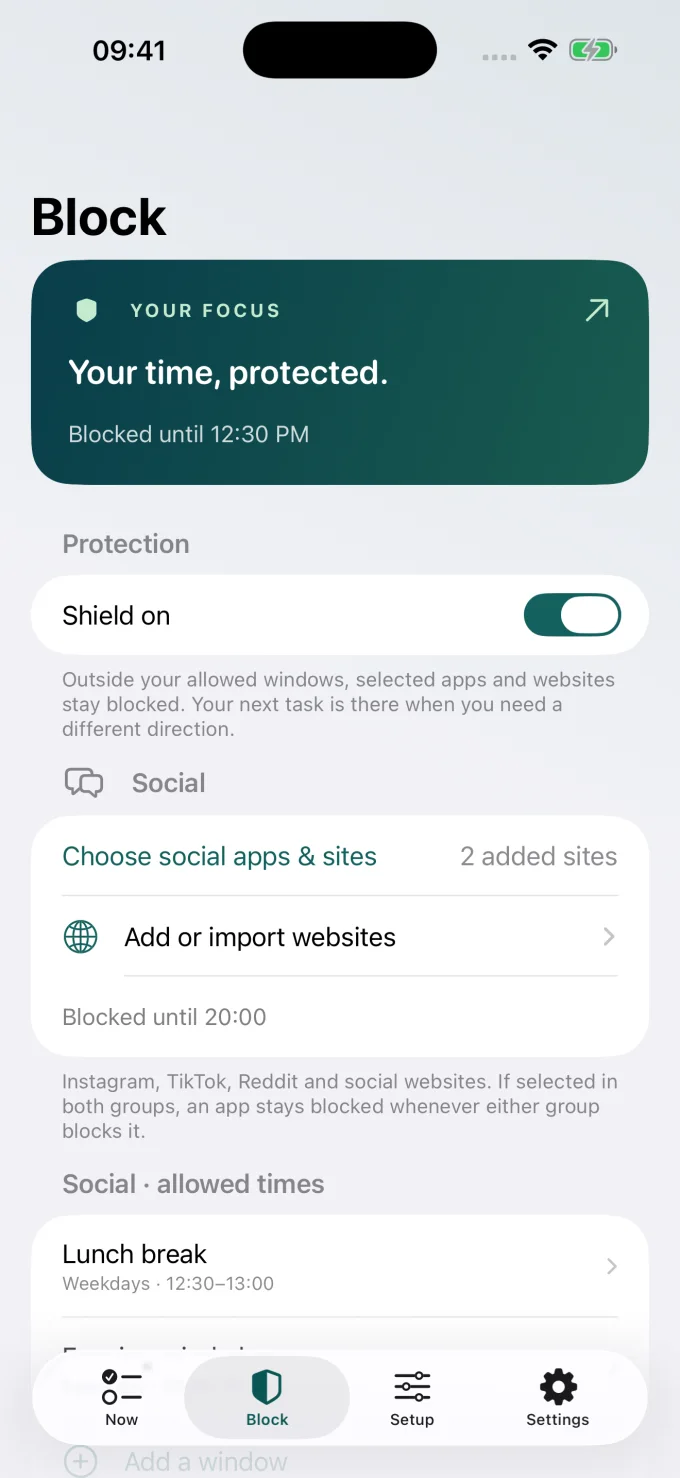
That delay addresses an immediate change of mind inside Do Instead. It is not a claim of an unbreakable device lock. Device permissions, app removal and other access routes still matter, and this guide does not benchmark every possible bypass.
Completing a task does not unlock apps. The free Shortcuts workflow is also different: it opens Do Instead as a pause, without strict scheduled blocking. Reminders is free; scheduled blocking and Todoist require Pro. Read the Free and Pro comparison before choosing a plan.
If your main need is a harder rule with usage feedback, compare Opal and Do Instead. Opal’s own documentation explains its stricter controls and their conditions. If you want free waits and configurable limits, read ScreenZen vs Do Instead and check ScreenZen’s current features.
Run one clear test
Pick one app and decide what should happen now. If the intended answer is “blocked,” try opening it without first changing any settings. Record whether you see no warning, a warning with an override, or a block. Then test one change at a time.
- Check the next allowed period as well as the blocked one.
- Try the associated website separately using the website blocking checklist.
- Keep personal communication and necessary tools available.
- If you work across devices, record which devices the rule covers.
- Choose an alternative activity before the next interruption.
If the boundary is technically working but you override it every day, revise the rule before concluding that you need the most restrictive product. A smaller commitment that fits your day is a useful next experiment.
Questions about limits and overrides
Why does my iPhone let me ignore a limit?
It depends on the type of rule, settings and iOS version. Apple’s iOS 26 guide explicitly describes limits that can be ignored by default and a separate Block at Downtime option. Start with your actual settings and the message you see.
Will a Screen Time passcode make a rule impossible to bypass?
This guide does not make that promise. A passcode can change the friction around settings and access, but self-managed restrictions and account recovery are not an absolute guarantee.
Does Do Instead block apps immediately after I finish a task?
Its scheduled blocking is based on allowed times, not whether a task is complete. Finishing a task neither earns time nor changes the schedule.
Should I use an opening pause instead of blocking?
Consider a pause when automatic checking is the problem and you still want to decide each time. Consider a schedule when you can name hours when access should be unavailable. You can compare the approaches in our one sec comparison.
Fix the reason, then choose the amount of friction
Separate a settings problem from a deliberate override. Match the boundary to the time you want to protect, keep necessary access, and check the actual app and browser. If a task from your own list would help at that moment, try Do Instead’s free Reminders workflow before deciding whether to add scheduled protection.
Bring your own plans into view
Make room for what you would rather do.
Start with Apple Reminders and a pause before a distraction.
iPhone · iOS 17+. Reminders and the Shortcuts pause are free. Scheduled blocking and Todoist require Pro. This link opens the App Store; any Pro offer and trial terms are shown before purchase.